
Admins in Strev can control user access by revoking access or removing users. These actions are intentionally separated to prevent accidental permanent removal.
This guide walks you through how to revoke access (disable a user) and how to permanently delete a user.
Accessing User Management
- Log in as an Admin
- Click the ⚙️ Settings icon
- Go to Admin Settings → User Management → Users
You’ll see the List of Users page with each user’s:
- Role
- Status
- Group assignments
- Last login
- Actions menu (⋯)
Use this when you want to temporarily remove access without deleting the user’s data or activity history.
Revoking User Access (Required First Step)
Revoking access immediately disables a user’s ability to log in, without deleting the user account.
When to Revoke Access
- Temporary leave or suspension
- Security or compliance review
- Pending offboarding
- Role or access change
How to Revoke Access:
- Go to Admin Settings
- Click User Management → Users
- Locate the user in the list
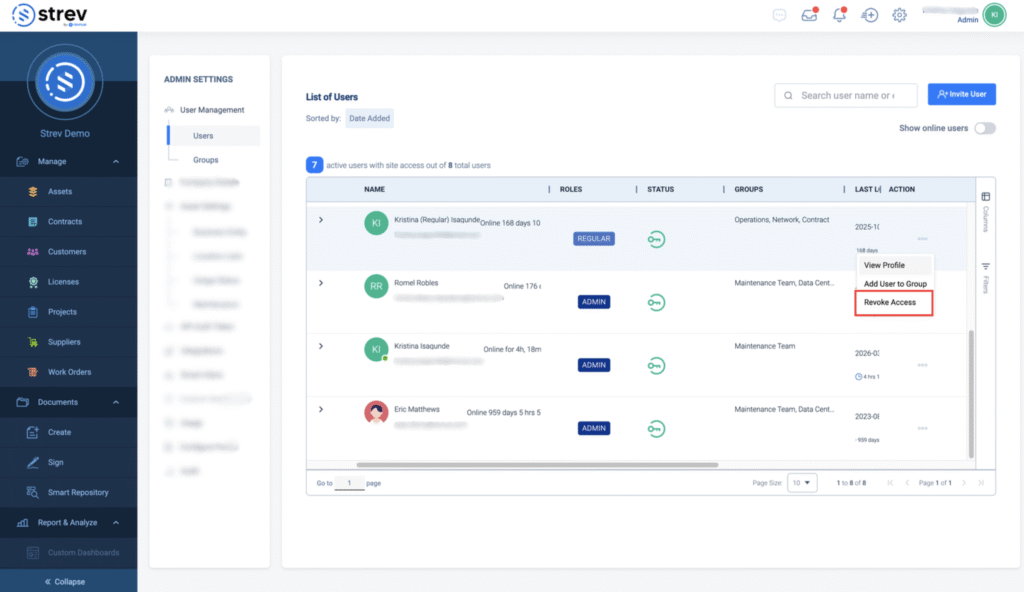
- Click the three-dot menu (⋯) under the Action column
- Select Revoke Access
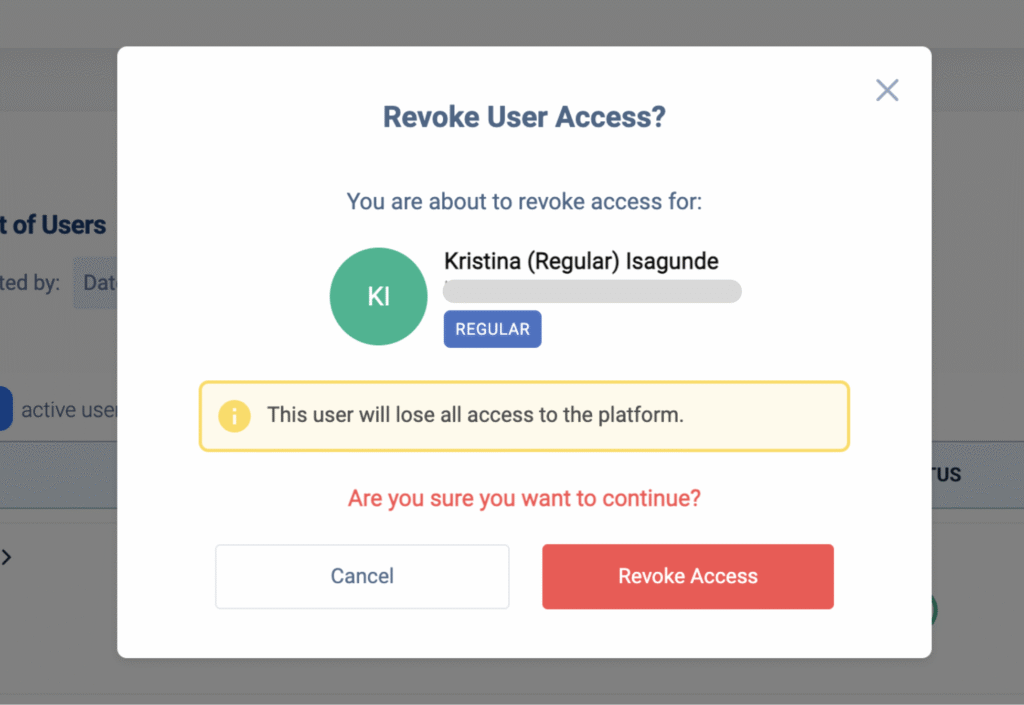
- In the confirmation popup, click Revoke Access
What Happens After Access Is Revoked
- The user can no longer log in
- The user remains visible in the Users list
- Group memberships are retained
- Audit history and records are preserved
- You can restore access later using Grant Access
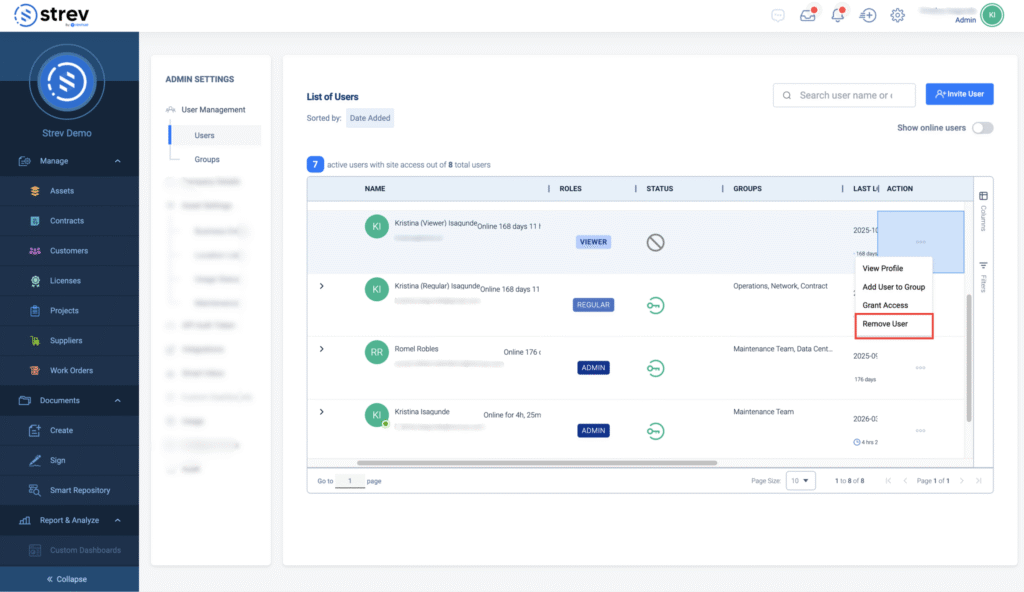
Once access is revoked, the Remove User option becomes available.
Removing a User (After Revocation)
Removing a user permanently removes the user from the workspace. This option only appears after access has been revoked.
Why Removal Is Locked Behind Revocation
This two-step process:
- Prevents accidental deletion
- Ensures access is explicitly disabled first
Preserves audit and compliance integrity
How to Remove a User
- Go to Admin Settings
- Click User Management → Users
- Find the user
- Click the three-dot menu (⋯)
- Select Remove User
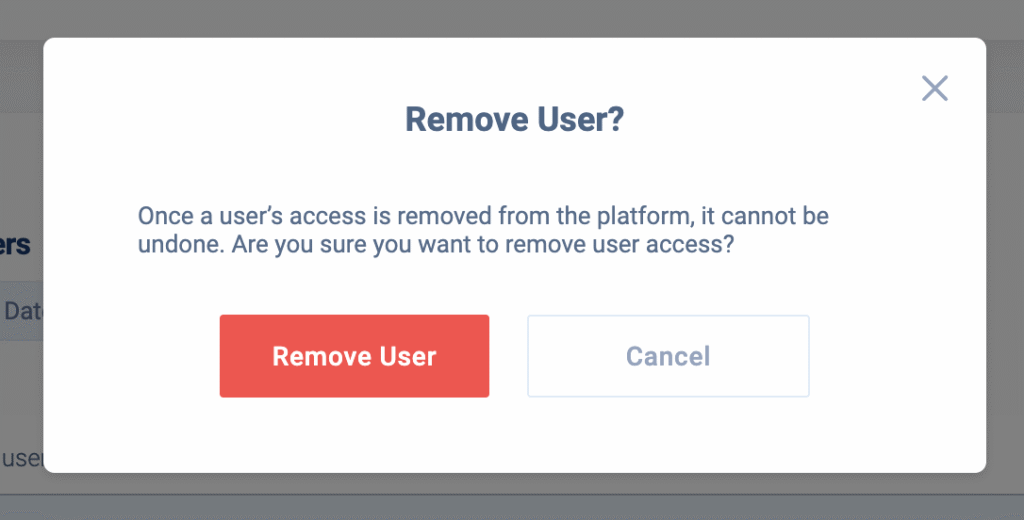
- Confirm by clicking Remove User in the popup
Important:
- This action is permanent and cannot be undone
- The user will lose all access to the platform
- Audit logs may still retain references to the user
- Reassign any owned records before removal if needed
What Happens After Removal
- The user is removed from the workspace
- The user is removed from all groups
- Historical records remain for reporting and audit
- The user can be re-added later as a new user if needed
Role and Group Behavior During Revocation
- Revoked users do not inherit permissions from roles or groups
- Group membership does not grant access to inactive users
- If access is restored (before removal), permissions are re-applied based on:
- User role
- Group memberships
- Least privilege rules
Recommended Best Practices
- Revoke access first for immediate security control
- Remove users only after offboarding is confirmed
- Avoid removing users if access may be needed again
- Review inactive users regularly
