
This article provides a step-by-step guide on how to enter and track the location of an asset within the Strev Dashboard. Before viewing an asset location, you must ensure the location details are correctly entered in the system. This guide covers both how to input the asset location and where to find this information afterwards.
How to Enter Asset Location
- Log in to the Strev Dashboard.
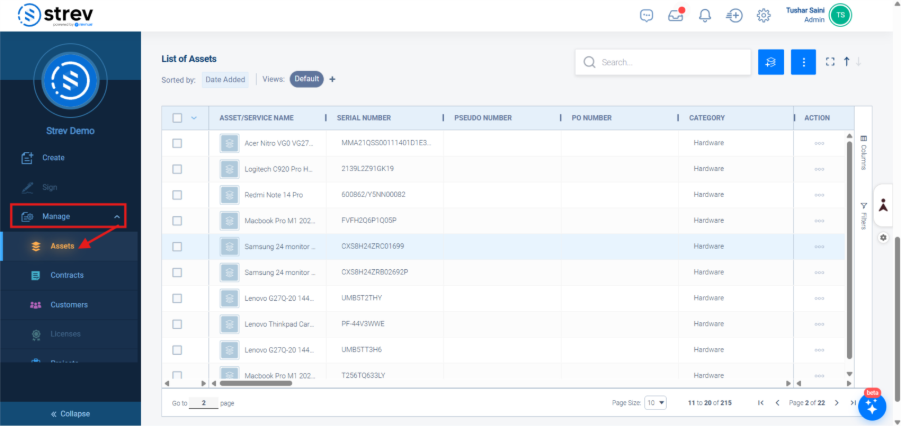
- Navigate to the Assets tab from the left-hand panel.
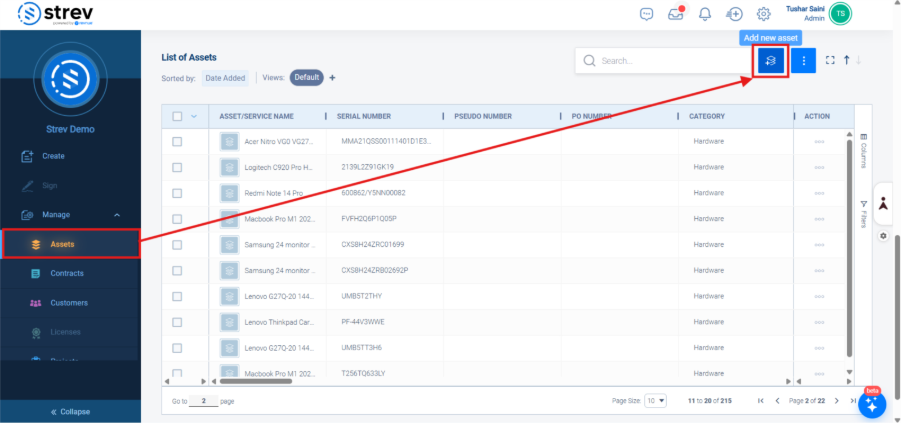
- Select Add+ new Asset.
- Go to the ‘Asset Location’ or ‘Location’ Section within the asset details form.
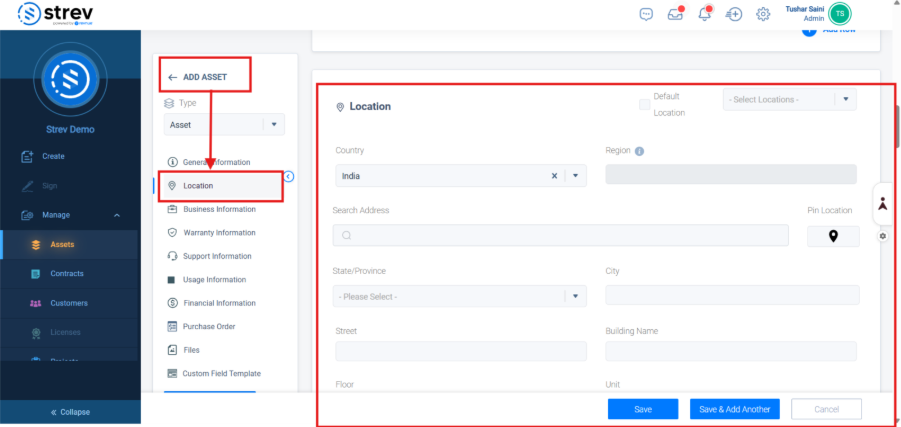
- Enter the correct location information for the asset.
- Save the changes to update the asset record.
- Once an asset is already created, you may still update the location record of your asset by going into the details page, and clicking on ‘Set Address’ found in the location section
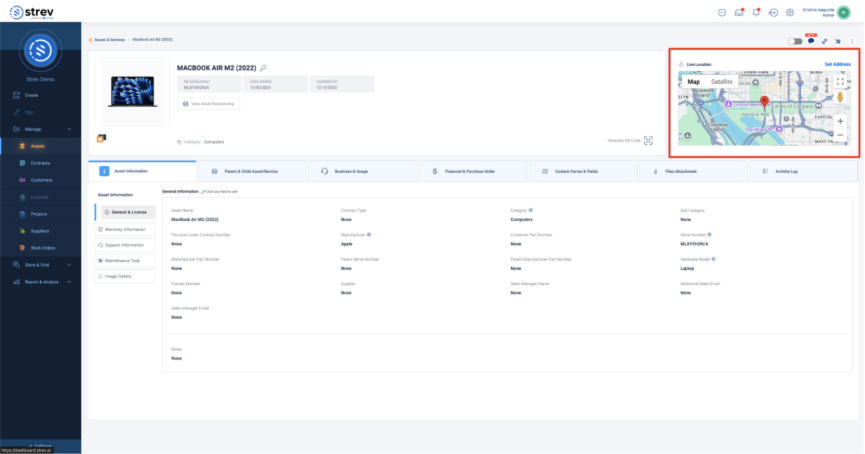
- A side tray will appear that lets you input the new address or enter the coordinates corresponding to the location of your asset.
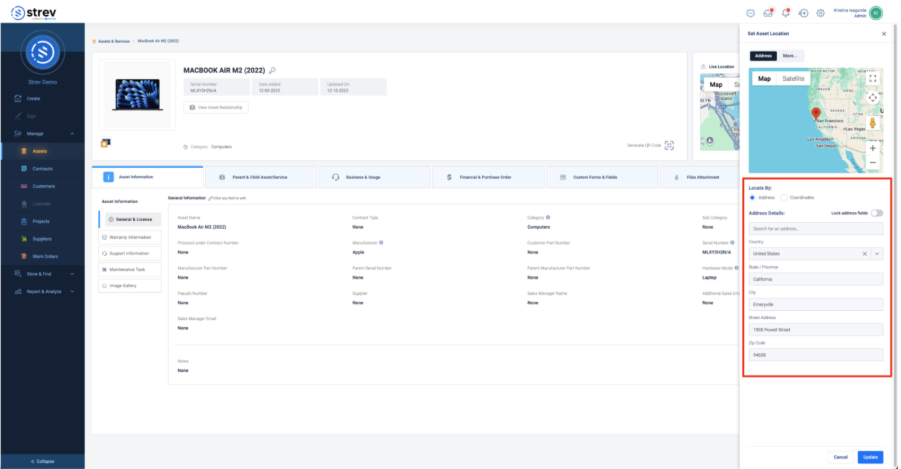
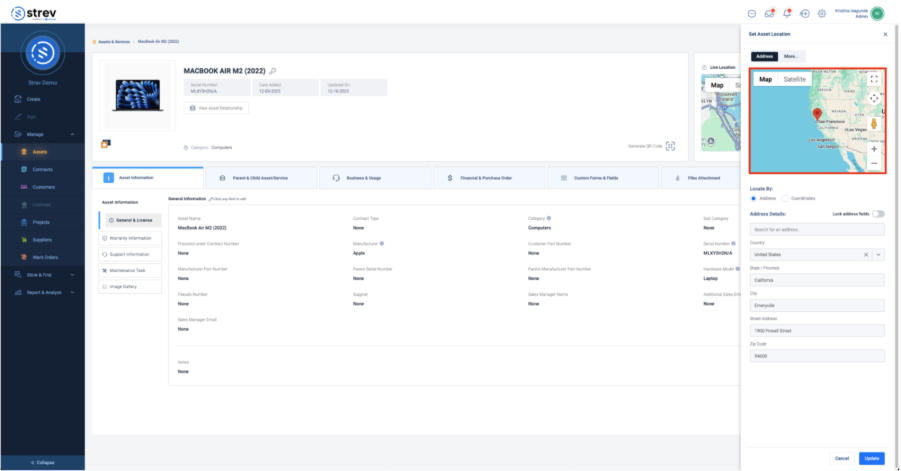
- You can also drag the pin on the map to correctly set the exact location of your asset. The address fields will automatically update based on where you place the pin.
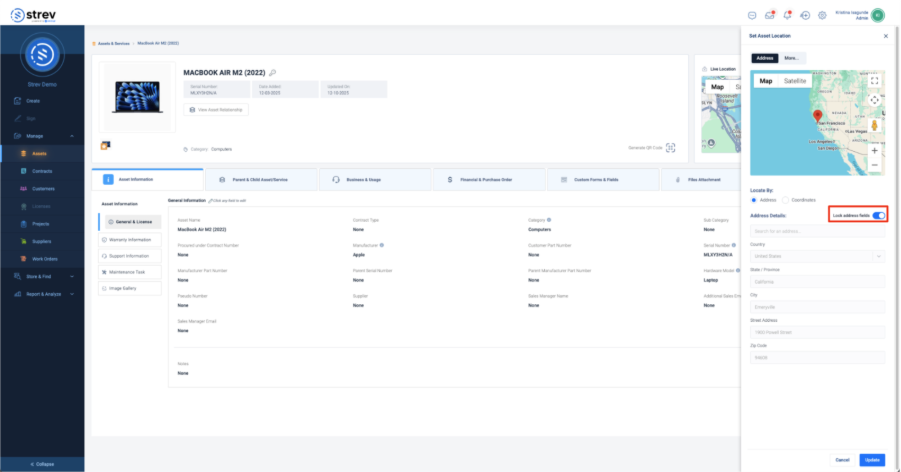
- If you don’t want the address fields to update automatically, you can toggle on “Lock address fields” to keep them fixed.
- Once you’re done, click on “Update” to save the changes.
How to View Asset Location from the Asset Table
- Go to the Assets tab from the left panel.
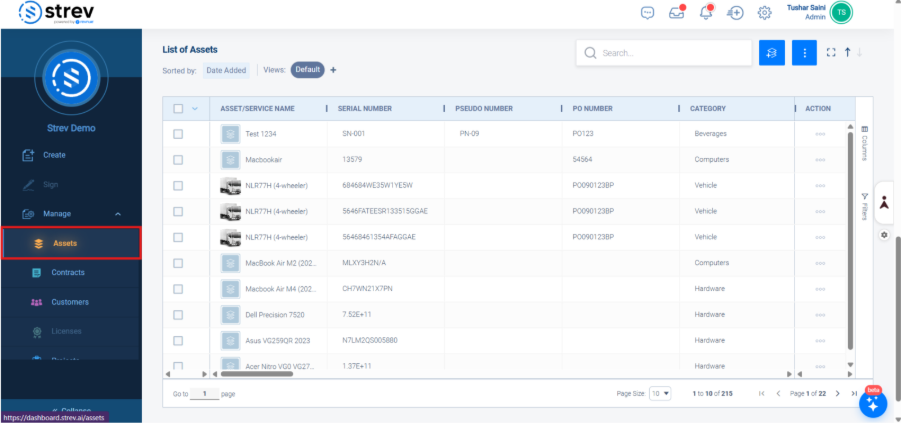
- Click on the ‘Columns’ tab found on the right side of the table.
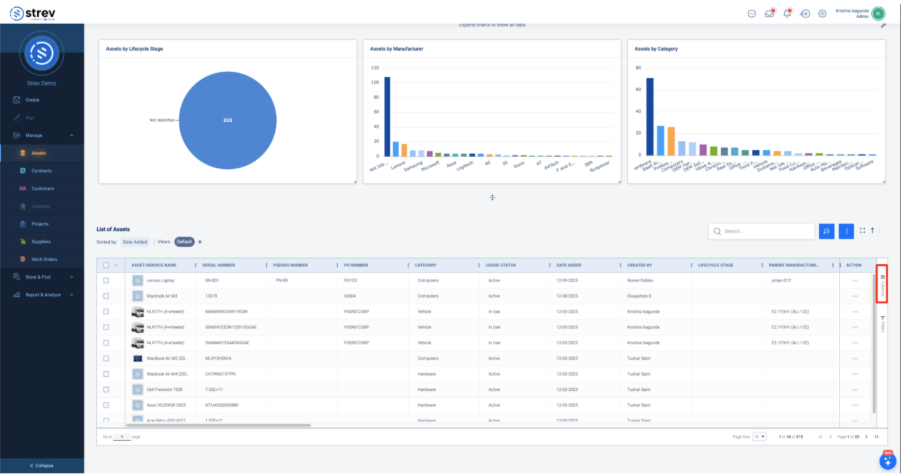
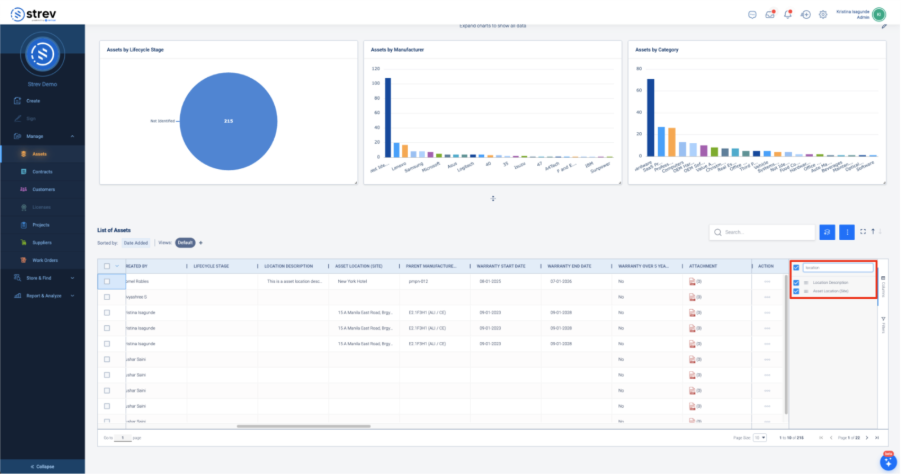
- Type ‘location’ on the search box
- Make sure “Asset Location” is selected.
- Scroll towards the right side of the asset table to see the Location information displayed.
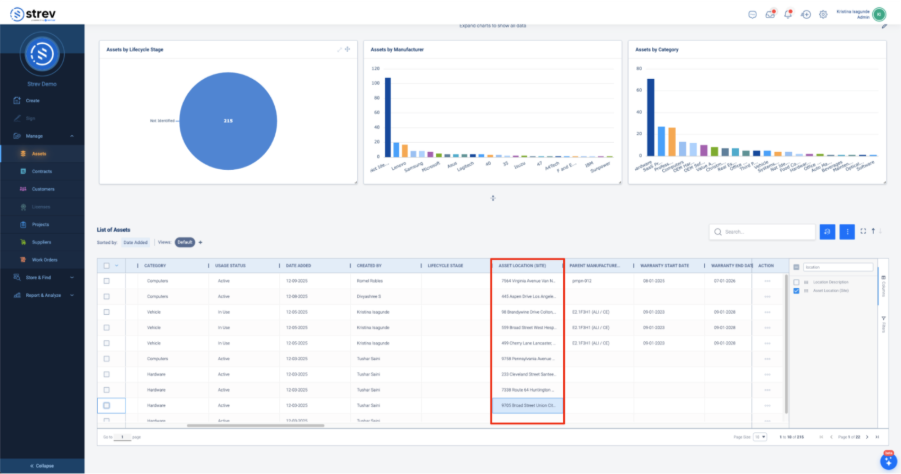
How to View Asset Location through Map View
You can now also view and search for assets using the Map View feature, located at the top-right corner of the Asset dashboard. This feature allows you to visually identify asset locations on an interactive map, making it easier to understand where each asset is situated and improving navigation across your asset inventory.
- Login to your Strev Dashboard.
- Click+ Manage, proceed by clicking on the Assets.
- Click Map View.
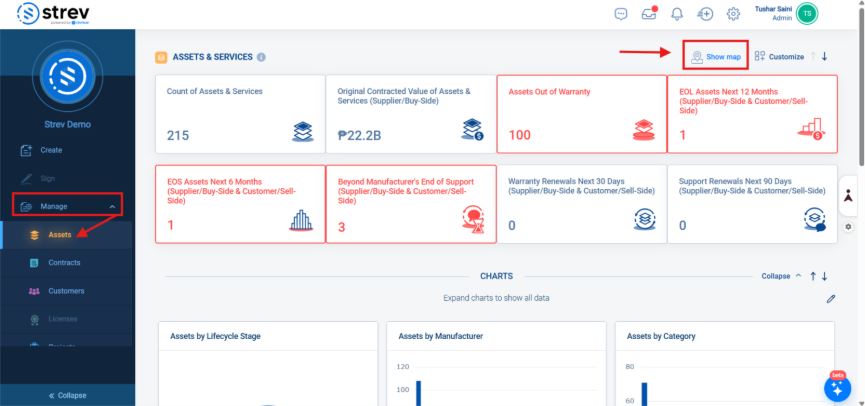
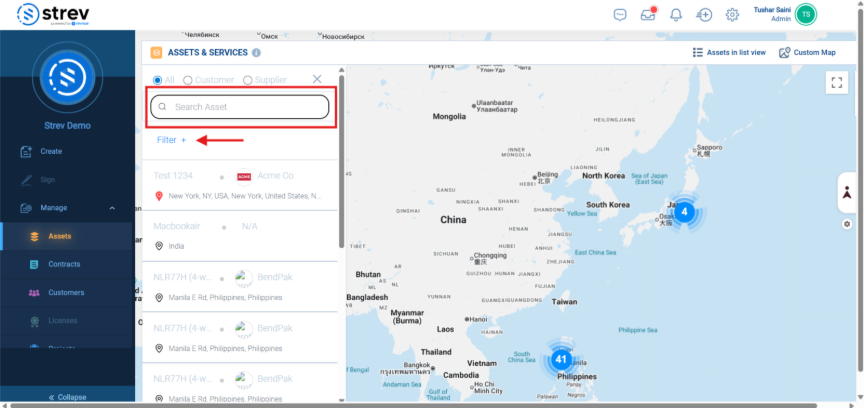
You will be redirected to ‘Assets and Services’ Page. Here you can search for your asset inside the search bar or can add filters to narrow your search.
Need Help? If you run into any issues, please contact our support team at support@strev.ai or message us directly via your Teams channel.
