The Audit Log in Strev records system activity across your workspace. It provides a detailed history of actions performed by users, helping administrators monitor changes, investigate issues, and maintain operational accountability.
Audit logs capture events such as asset creation, record updates, document actions, and other system activities.
Accessing the Audit Log
- Log in as an Admin
- Click the ⚙️ Settings icon in the top-right corner
- Navigate to Admin Settings → Audit
The Audit page displays a log of activity across different modules in Strev.
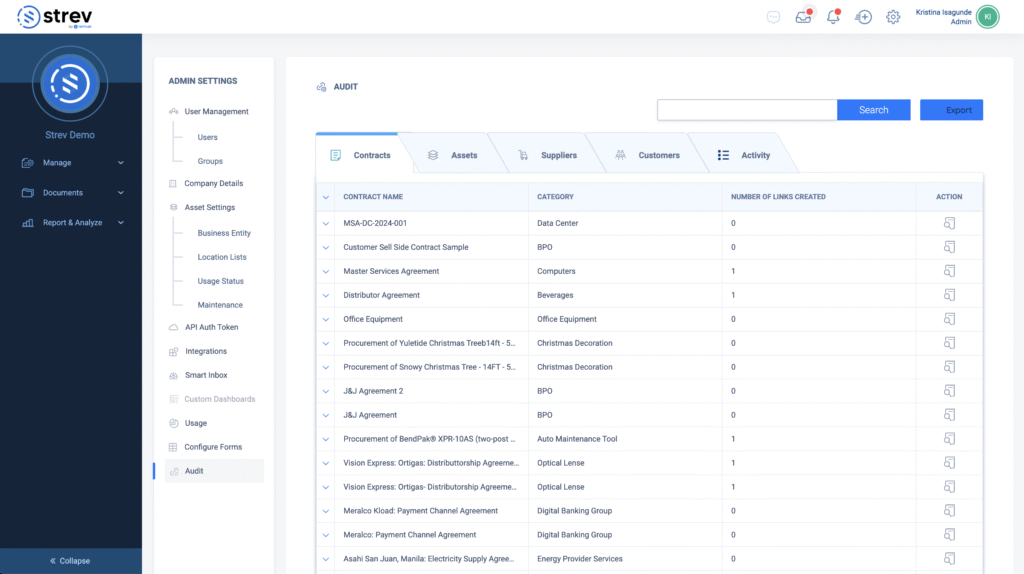
Audit Log Tabs
At the top of the page, the audit logs are organized into several categories to make it easier to locate specific activities.
Contracts
Displays actions related to contract records, including creation, updates, and modifications.
Assets
Shows activity related to asset records such as new assets created, updates to asset details, or other lifecycle changes.
Suppliers
Tracks actions performed on supplier records.
Customers
Displays updates or actions related to customer records.
Activity
Provides a consolidated activity log across the system.
Understanding the Audit Log Table
Each row in the audit log represents a specific action performed within the system.
The table includes the following details:
User
Shows the user who performed the action.
Action
Indicates the type of activity performed, such as:
- Created
- Modified
- Deleted
Field and Other
Identifies the specific field or component that was affected.
Old Value
Displays the previous value before the change.
New Value
Displays the updated value after the change.
Name/Object Name
Shows the name of the asset, document, contract, or record that was affected.
Object/Page
Indicates which module or page the action occurred in.
Activity Date
Displays the exact date and time when the action took place.
Searching the Audit Log
Use the Search bar in the top-right corner to quickly locate specific records or activities.
This is useful when tracking actions related to a particular asset, contract, or document.
Exporting Audit Data
Administrators can export audit log records for reporting or investigation.
To export logs:
- Navigate to the Audit page
- Apply filters if needed
- Click Export
The exported file can be used for:
- Internal audits
- Compliance reporting
- Activity analysis
When to Use the Audit Log
Administrators commonly use the audit log to:
- Track who created or modified records
- Investigate unexpected changes
- Review system activity across teams
- Support internal compliance or security reviews
Best Practices
- Review audit logs regularly for important system activity
- Use filters to quickly locate specific actions
- Export logs when preparing reports or conducting audits
- Restrict audit access to administrators for security oversight
