
Strev allows you to create or continue working on documents using existing files. You can upload files from your computer or select files already stored in your Smart Repository.
Option 1: Upload a File from Your Computer
Use this option when your document is stored locally on your device.
Steps:
- Go to Documents → Create
- Locate the Upload File section
- Either:
- Drag and drop your file into the upload area, or
- Click the upload box to select a file from your computer
- Wait for the upload to complete
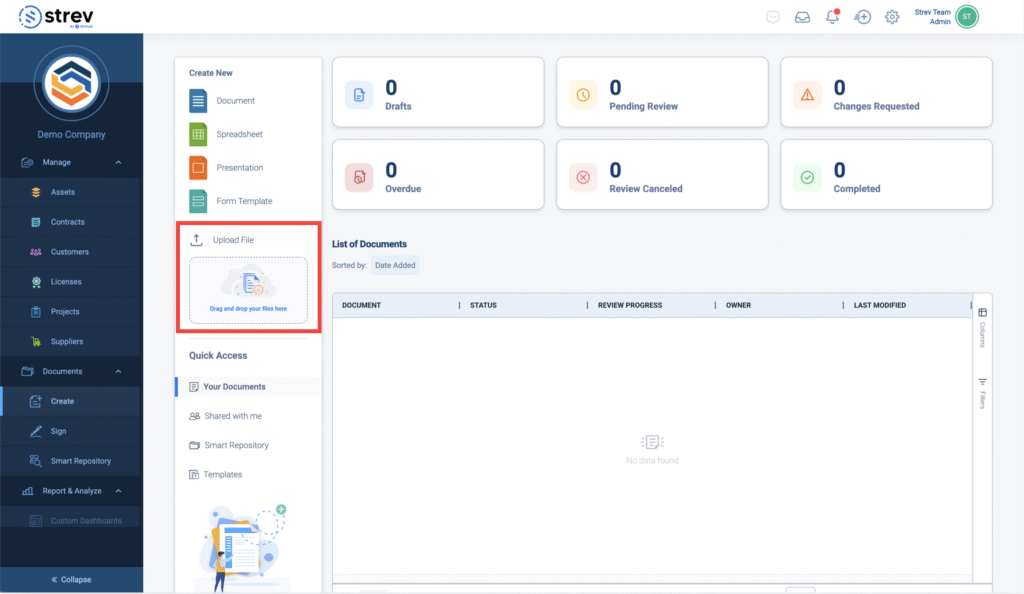
Once uploaded, the file will open in the document editor where you can:
- Review and update content
- Apply formatting
- Send for review or signature
Option 2: Use a File from Smart Repository
Use this when your file already exists in Strev.
Steps:
- Go to Documents → Smart Repository
- Locate the file you want to use
- Right-click on the file
- Select Create Document
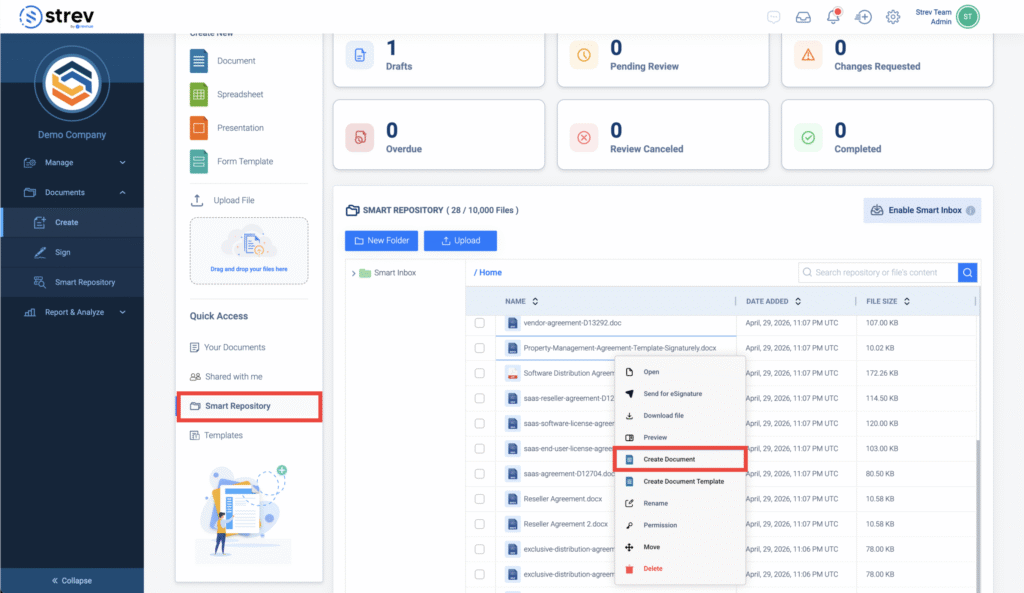
The system will open the file in the document editor, allowing you to start editing.
What Happens Next
After opening the file (via upload or Smart Repository), you can:
- Edit and format the content
- Add comments or collaborate with others
- Track changes during review
- Share the document or manage permissions
- Send the document for review or signature
When to Use Each Option
- Upload File → When the document is on your computer
- Smart Repository → Create Document → When the file already exists in Strev
Tips
Rename files clearly before converting them into documents
Use Create Document instead of downloading and re-uploading files
Avoid duplicate uploads when the file already exists in the repository