
The document editor in Strev is designed to help you create, edit, and review documents efficiently. It organizes tools and features into clearly structured sections so you can focus on drafting while still having full control over formatting, collaboration, and navigation.
Overview of the Editor Layout
When you open a document, the editor is divided into several key areas:
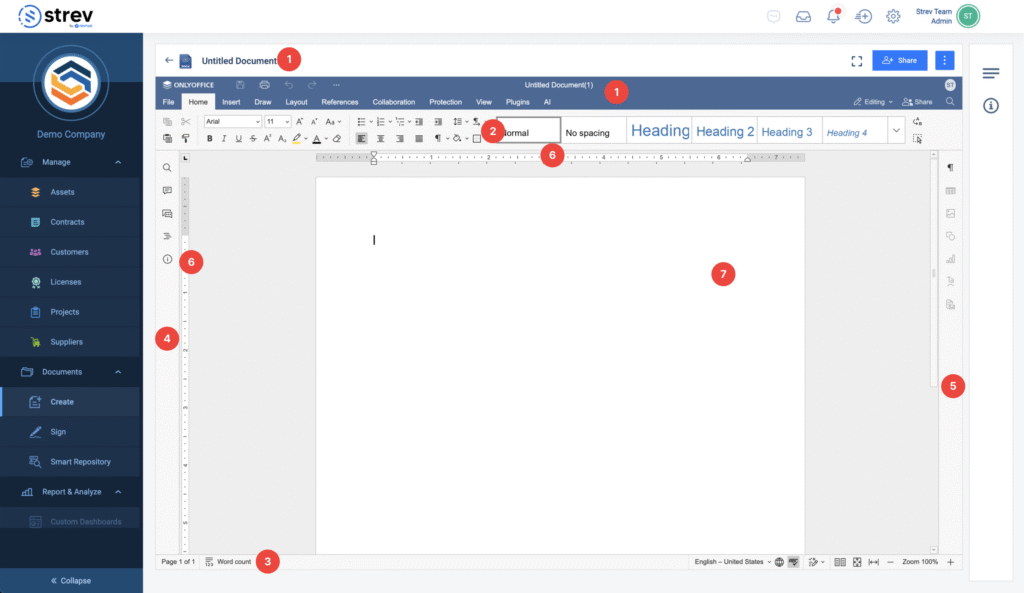
1. Editor Header
The header displays open document tabs along with their document title and menu tabs.
On the left side of the header, you will find:

- Save
- Undo
- Redo
You can also customize which buttons are visible by using the menu (three dots) option.
On the right side of the header, alongside your user profile, the following options are available:

- Editing / Reviewing / Viewing
Lets you switch between document modes, each with different permissions and capabilities. - Open File Location
Opens the folder where the document is stored within the Documents module. - Share (if enabled)
Allows you to manage access permissions for the document. - Search
Helps you find specific words, phrases, or symbols within the document.
2. Top Toolbar

The top toolbar contains editing tools grouped into tabs. Available tabs may include:
- File
- Home
- Insert
- Draw
- Layout
- References
- Forms (for supported file types)
- Collaboration
- Protection
- Plugins
- AI
Basic actions such as Copy, Paste, Cut, and Select All are always accessible regardless of the selected tab.
3. Status Bar
Located at the bottom of the editor, the status bar displays:

- Page number
- Word count
- System messages (e.g., save status or connection updates)
It also allows you to:
- Set the document language
- Enable spell check
- Turn on track changes
- Switch to multipage view
- Adjust zoom level
4. Left Sidebar
The left sidebar provides quick access to navigation and collaboration tools:
- Search – Find and replace text
- Comments – Open and manage document comments
- Headings – Navigate and organize document structure
- Chat (if enabled) – Communicate with collaborators
- Support/Feedback (if enabled) – Reach out to support
- About (if enabled) – View system information
5. Right Sidebar
The right sidebar displays additional settings based on what you select in the document.
- Selecting text or objects activates relevant options
- Click the corresponding icon to expand and adjust properties
6. Rulers
Horizontal and vertical rulers allow you to:
- Align text and elements
- Set margins
- Configure tab stops and paragraph indents
7. Working Area
This is the main document space where you:
- View content
- Enter and edit text
- Apply formatting
8. Scroll Bar
The scroll bar on the right lets you move through multi-page documents easily.