
Overview
When you’re assigned as a reviewer on a document in Strev, you may sometimes need more time than the due date allows. Instead of letting the review go overdue, you can submit an extension request directly from the document, specifying a new due date and a reason. The document owner receives a prompt to approve or reject your request, and you’re notified of the outcome.
Step 1: Open the document you’re reviewing
From your dashboard, go to Documents > open the document that needs more review time. The Document Details panel on the right shows the current due date and, if the review is past due, an “Overdue” status badge.
Step 2: Request the extension
- Click Actions near the top of the document.
- Select Request Extension from the menu.
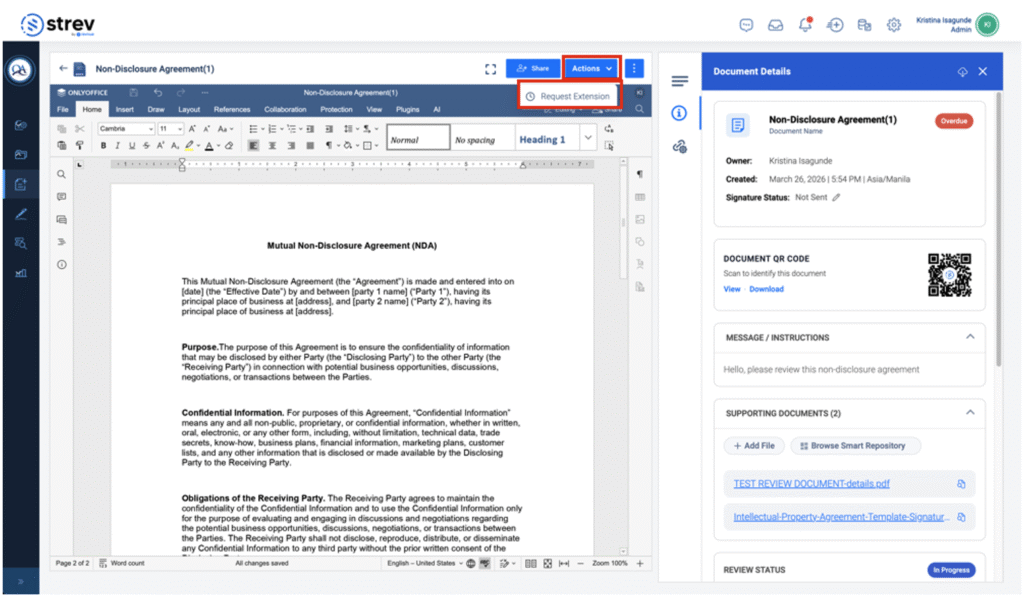
Figure 1 — Selecting Request Extension from the more options menu
- In the Request extension dialog, enter the Requested new due date. The Current due date is shown for reference.
- In Reason for extension, briefly explain why you need more time. This field is required.
- Click Submit Request.
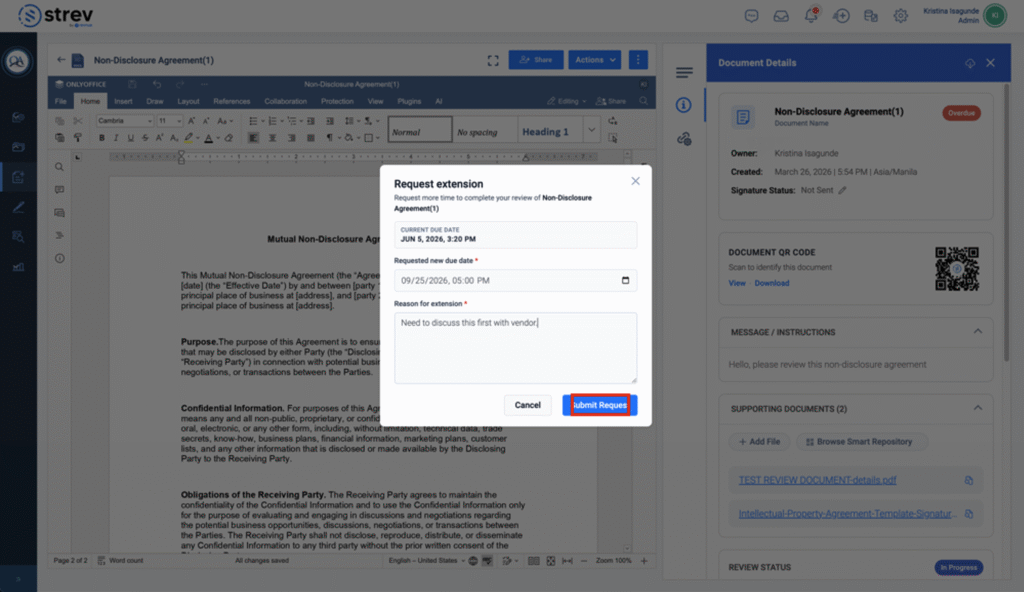
Figure 2 — Completed extension request with a new due date and reason
A confirmation message, “Extension request submitted successfully,” appears once the request has been sent.
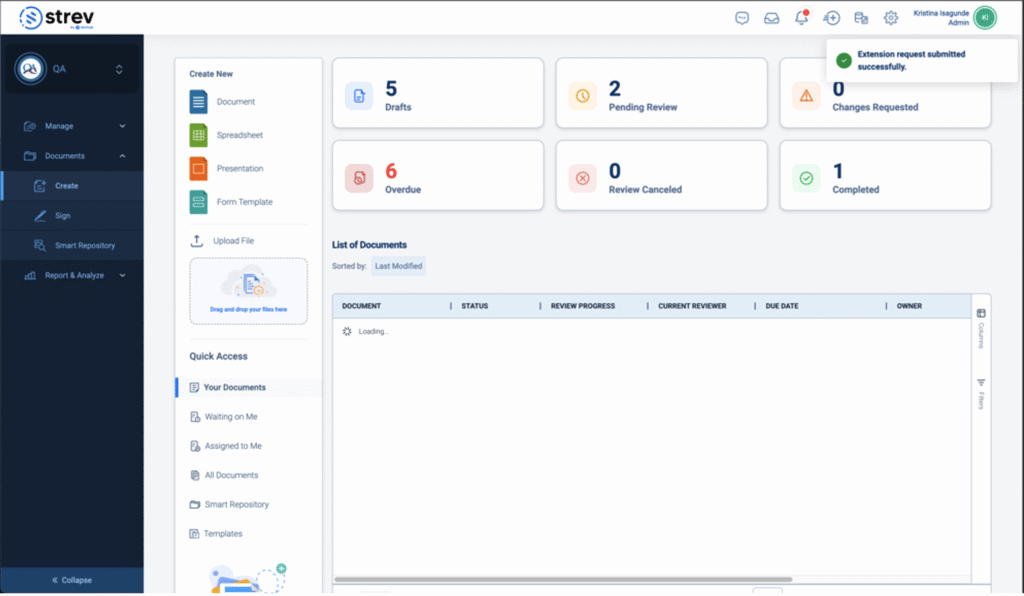
Figure 3 — Confirmation toast after submitting the request
Step 3: The document owner reviews your request
Once you submit the request, the document owner sees a banner at the top of the document: “[Reviewer name] requested a new due date of [date, time].” The banner includes a Review button so the owner can act on it.
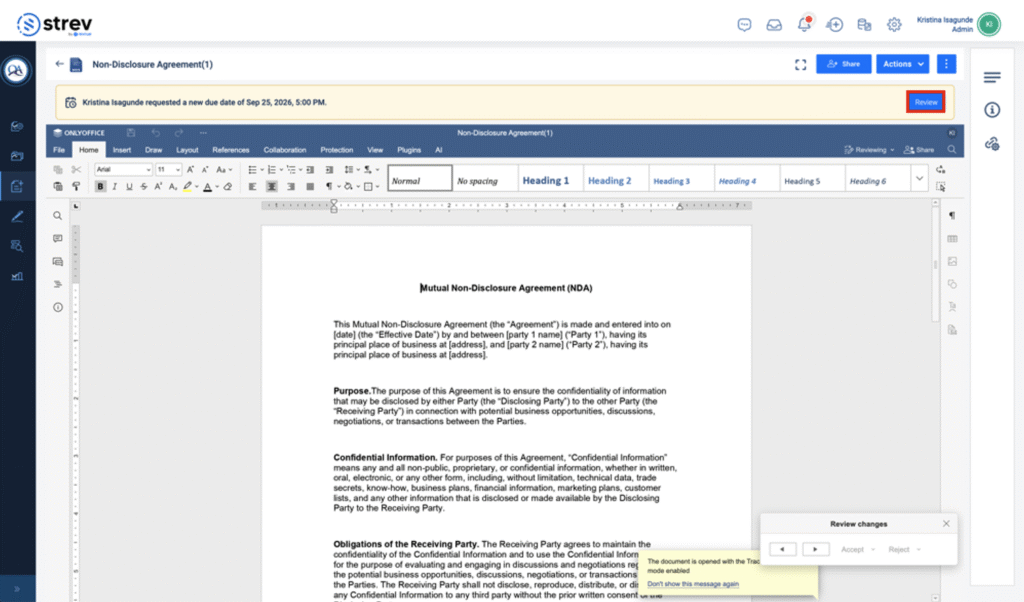
Figure 4 — Banner prompting the document owner to review the extension request
Clicking Review opens the Extension request dialog, which shows who requested the extension, the current due date, the requested new due date, and the reviewer’s stated reason. From here, the owner can either approve or reject the request.
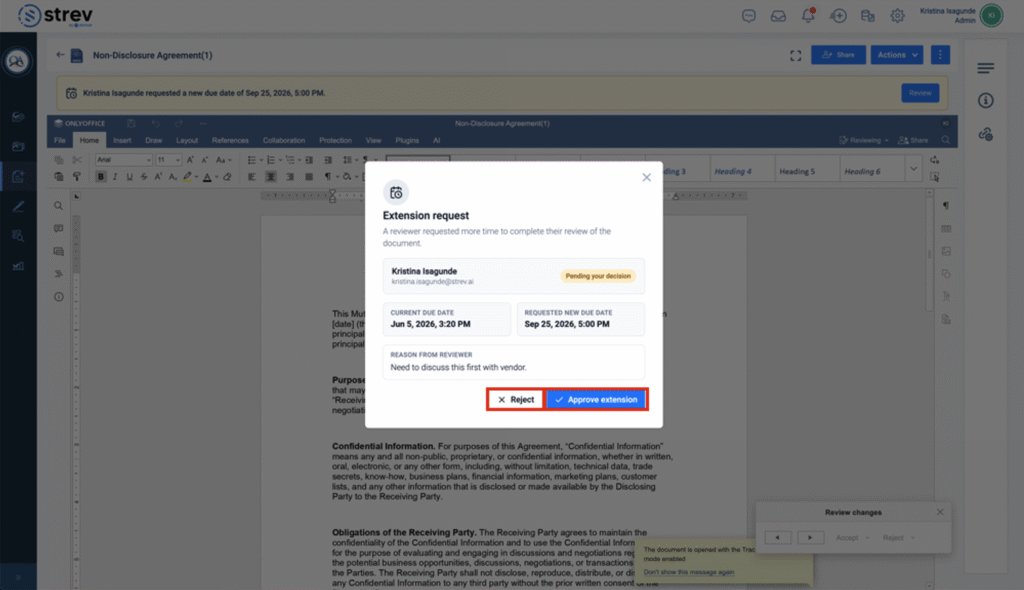
Figure 5 — Extension request details, with the Reject and Approve extension actions
If the request is approved
The owner can approve the exact date you requested, or override it with a different due date in the Approved due date (optional override) field. They may also add an optional note for you before clicking Approve extension. The document’s due date updates automatically, and you’re notified of the new deadline (and the note, if one was added).
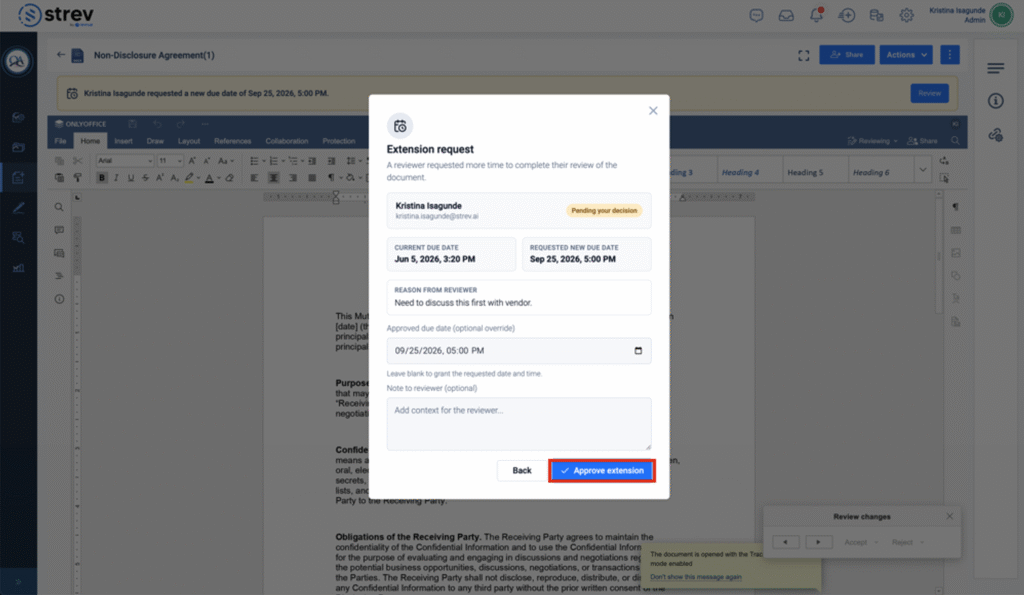
Figure 6 — Approving the extension, with an optional override date and note
If the request is rejected
If the owner can’t grant the extension, they select Reject, enter a required Reason for rejection, and click Reject request. The original due date remains in effect, and you’re notified of the rejection along with the owner’s reason.
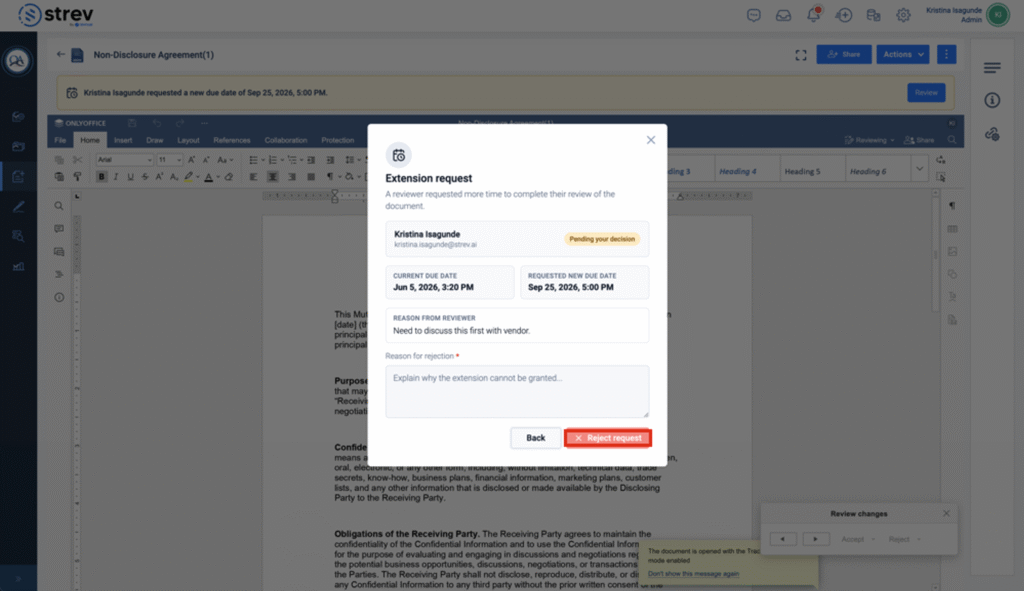
Figure 7 — Rejecting the extension request with a reason
Tips
- Be specific in your Reason for extension. A clear reason (e.g. “waiting on vendor confirmation”) helps the owner decide quickly.
- You can only have one active extension request per document at a time. Wait for the owner’s decision before submitting another.
- If your request is rejected, reach out to the document owner directly to discuss options.