
Overview
When an administrator adds you to Strev, you will receive an invitation email to create your account. The process only takes a few minutes.
After your account has been created, you will initially be assigned the Viewer role. Your Strev administrator must grant any additional permissions or roles required for your work.
This guide walks you through accepting your invitation and signing in to Strev for the first time.
Step 1: Open Your Invitation Email
Once you’ve been invited, you’ll receive an email from no-reply@strev.ai with the subject similar to:
You’ve been invited to join Strev
The email contains an Accept Invitation button.
Note: Invitation links expire after 24 hours. If your invitation has expired, contact your administrator to request a new one.
Step 2: Accept the Invitation
Click Accept Invitation in the email.
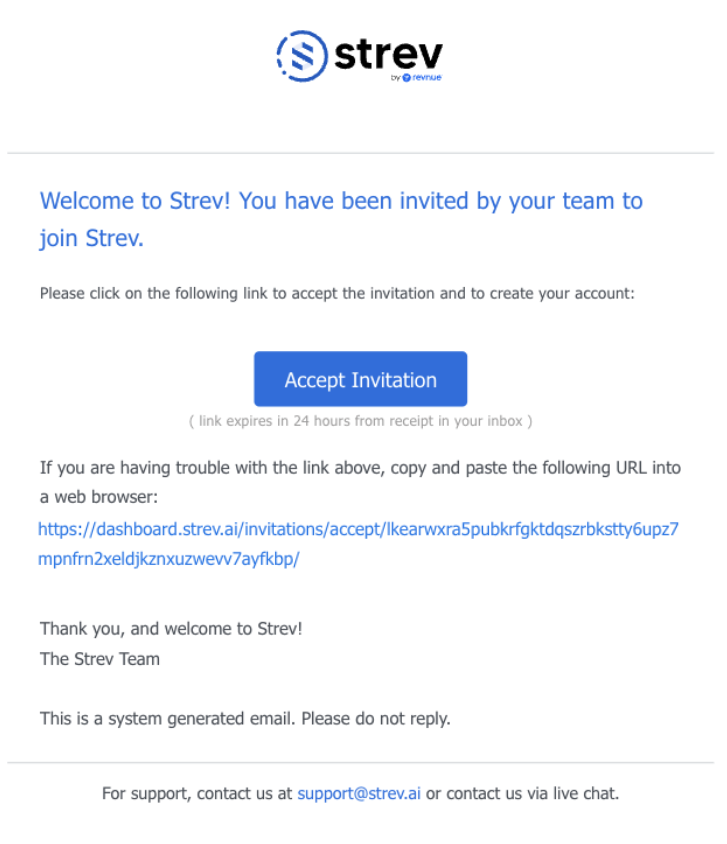
If the button does not work, you can copy and paste the invitation URL provided in the email into your web browser.
Step 3: Complete Your Account Information
You will be redirected to the Create an Account page.
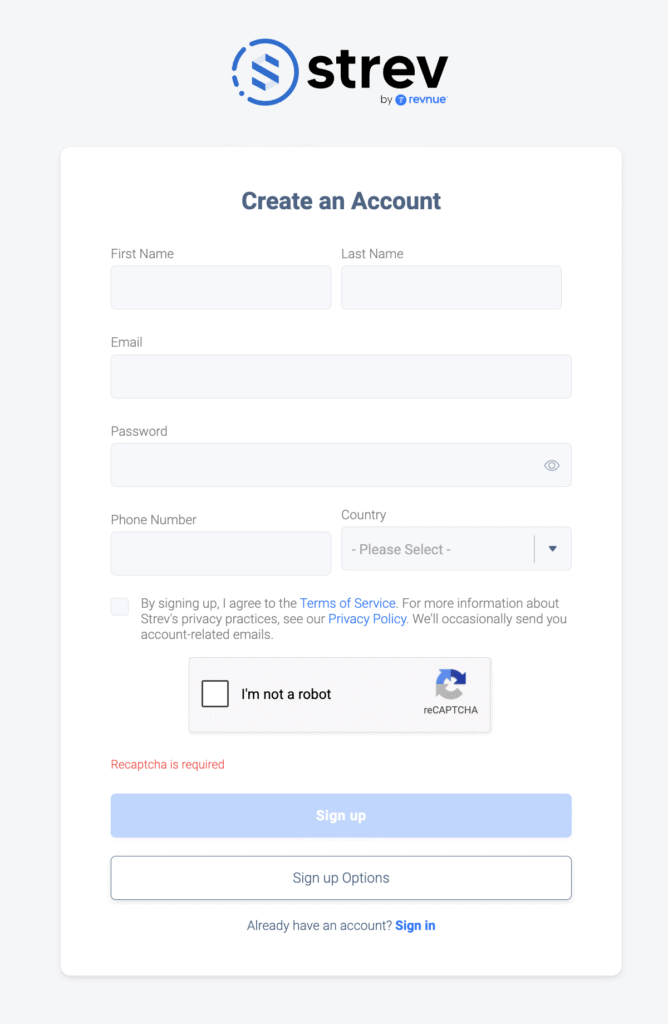
Fill in the required information:
- First Name
- Last Name
- Email Address
- Password
- Phone Number (if required)
- Country
Then:
- Accept the Terms of Service.
- Complete the reCAPTCHA verification.
- Click Sign Up.
Tip: Create a strong password that meets your organization’s password requirements.
Step 4: Access Strev
After successfully creating your account, you’ll be automatically redirected to the Strev platform.
Default Access
Your account is created with the Viewer role by default.
This allows you to sign in to Strev, but your access to features will be limited.
If you require additional permissions—such as creating or editing records, managing assets, uploading files, or administering the platform—your Strev administrator must assign the appropriate role and permissions after your account has been created.
If you believe you need more access than what is currently available, contact your administrator.
Troubleshooting
I didn’t receive the invitation email.
- Check your Spam, Junk, or Promotions folder.
- Search your inbox for no-reply@strev.ai.
- If you still can’t find it, ask your administrator to resend the invitation.
My invitation link has expired.
Invitation links are valid for 24 hours. Contact your administrator to send you a new invitation.
I clicked the invitation link but can’t create my account.
Try the following:
- Ensure you’re using the most recent invitation email.
- Open the link in a different browser or an incognito/private window.
- If the issue persists, contact your Strev administrator for assistance.
Next Steps
Once you’ve signed in, you’re ready to start using Strev. Your administrator may also provide additional guidance on navigating the platform and accessing the features available to your role.